Add & organize sites
Add sites one at a time or in bulk, organize them by client with tags and groups, and tune what each site monitors and how often.
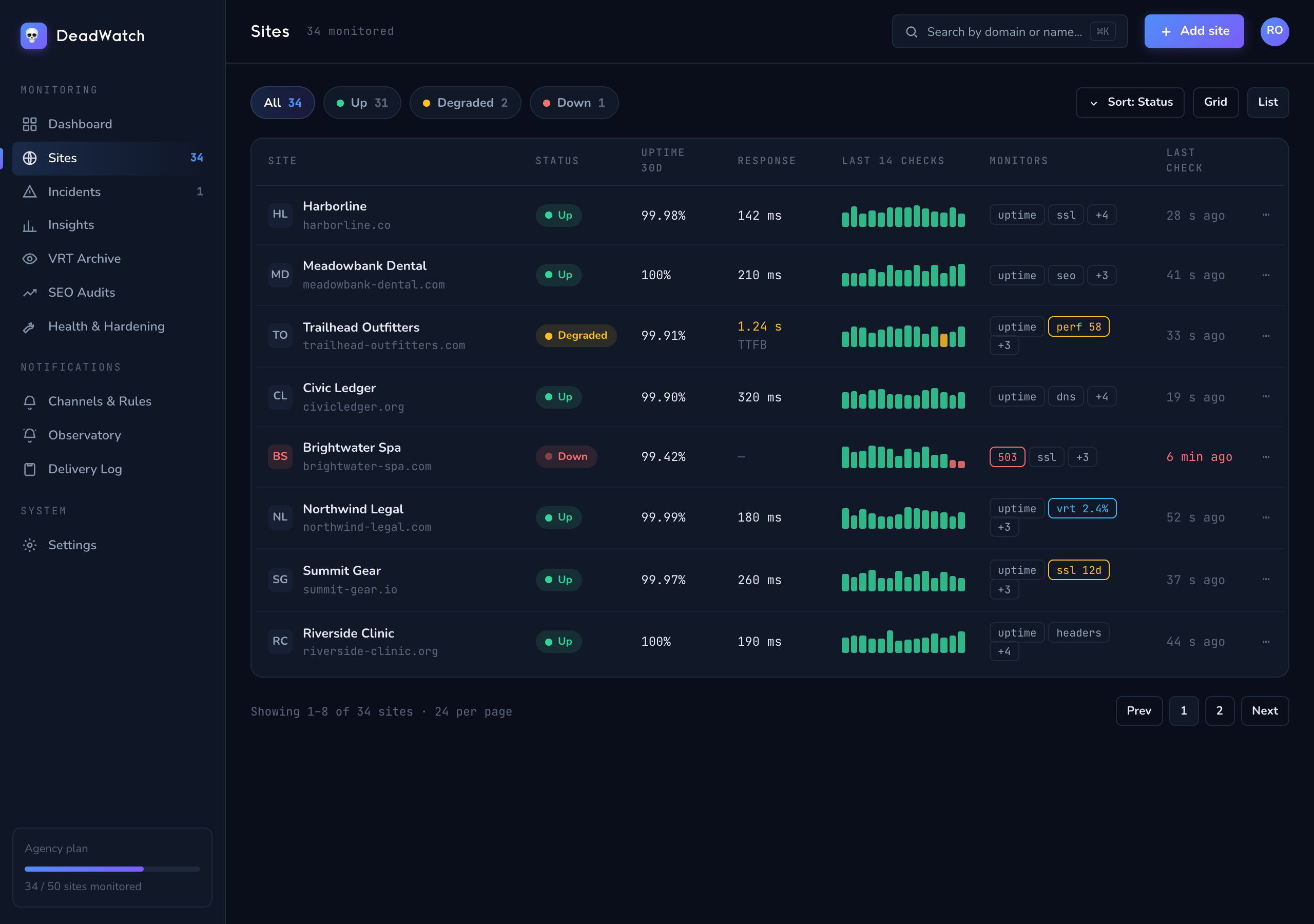
Add a single site
- Go to Sites and click Add Site.
- Fill in the Domain and optional Label.
- Pick Monitors — the pills default to uptime, ssl, dns; add performance, vrt, content-hash, headers, wordpress, seo-comprehensive, ping, ports, or whois as needed.
- Optionally set a Client, add Tags, and Assign to Team.
- Click Add Site.
Bulk-import your roster
Migrating a whole client list? Paste them all at once.
- Go to Batch Tools and open Import Sites.
- Paste one site per line in Name:URL or CSV format — for example
example.com,My Site,production|wordpress(domain, label, then tags). Up to 500 at a time. - Click Import.
You'll know it worked when… the toast reads "Imported N of M sites" and they appear on the Sites board.
Tip: Batch Tools also has Export / Import Configuration (JSON) if you're moving settings, channels, and sites between instances.
Organize by client
There are three complementary ways to keep a big roster tidy:
- Client — set the Client field on a site (in the Add-Site drawer or the site's Config tab). This links the site to a client so tickets, time, and the client portal show it. This is the first-class client relationship.
- Tags — add free-form tags (e.g.
client-a,wordpress,shared-hosting). Filter the Sites board by the All Tags dropdown. - Site Groups — go to Site Groups → New Group to bundle sites into named collections for maintenance windows and bulk operations. The Smart Recommendations panel even suggests groups by shared IP, client, or tag — click Create Group on a suggestion to prefill it.
Bulk actions
Select sites on the Sites board (checkboxes in List view) to reveal the bulk bar:
- Pause / Resume monitoring
- Check — run checks now on all selected
- Tag — add or remove a tag across the selection
- Delete
Toggle monitors and set intervals per site
Each site's monitors and cadence live on its Config tab.
- Open a site and go to the Config tab.
- Toggle individual monitors on or off.
- Set the Uptime Check Interval — options run from 1 min through 5 / 10 / 15 / 30 min, 1 / 2 / 4 hours, up to 1 day / 3 days / 1 week. (Your plan may set a minimum interval.)
- Other monitors inherit their global intervals from Settings → Monitors unless you override them here. Or pick a Cadence profile: Priority (1m / 5m / 1h), Standard (15m / 1h / 6h), or Baseline (6h / 24h / 24h).
A Custom vs Global badge on the site shows whether it overrides the defaults. Use Reset to global defaults to clear overrides.
You'll know it worked when… the site's interval shows on the Sites list (in minutes) and the Config badge reads Custom.
Next: Notifications & incidents → to decide where each site's alerts go.